
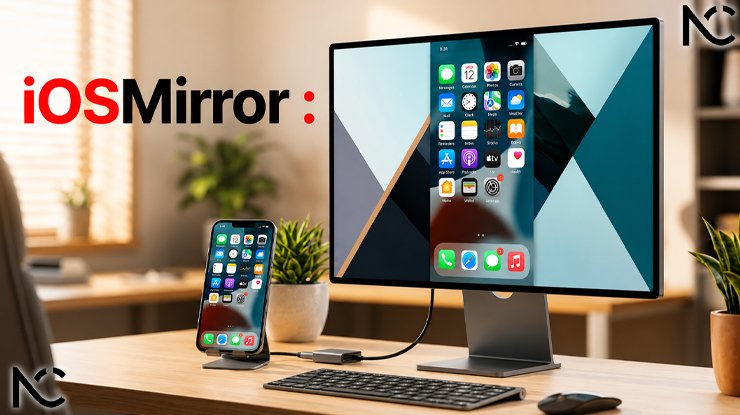
Have you ever wanted to see your iPhone screen on a bigger display? Maybe you want to show photos to your family on a TV, play mobile games on your computer, or share a presentation without passing your phone around. This is where a screen mirroring tool can really help.
iOSMirror is one of those tools. It lets you show your iPhone or iPad screen on your Windows PC or Mac computer. In this article, we will talk about what iOSMirror is, how it works, what features it has, and what you should know before using it.
What Is iOSMirror?
iOSMirror is a screen mirroring software that lets you display your iPhone or iPad screen on your computer. You can see everything on your iOS device right on your PC or Mac screen in real time.
It is made for people who want a simple and easy way to mirror their Apple device screen without needing a lot of technical knowledge. You do not need to jailbreak your iPhone or iPad to use it. It works with the screen mirroring feature that is already built into iOS devices.
Teachers, streamers, gamers, and business people often use tools like iOSMirror to make their work easier and more enjoyable.
How Does iOSMirror Work?
iOSMirror uses a technology called AirPlay. AirPlay is Apple’s wireless screen sharing system. It lets Apple devices send their screen to other devices on the same Wi-Fi network.
Here is how the process works, step by step:
Step 1: You download and install iOSMirror on your Windows or Mac computer.
Step 2: You open the app on your computer.
Step 3: You connect your iPhone or iPad to the same Wi-Fi network as your computer.
Step 4: On your iPhone or iPad, you open the Control Center. You tap “Screen Mirroring” and then select iOSMirror from the list.
Step 5: Your iPhone or iPad screen now appears on your computer screen.
The connection is wireless, so you do not need a USB cable. However, some versions of similar apps also offer a USB connection option for a more stable connection.
Key Features of iOSMirror
iOSMirror comes with several features that make it useful for different kinds of users. Let us look at the most important ones.
1. Real-Time Screen Mirroring
The biggest feature is, of course, screen mirroring. iOSMirror shows your iPhone or iPad screen on your computer with very little delay. This means you can see what is happening on your phone almost at the same time it happens.
This is great for watching videos, playing games, or doing live demonstrations.
2. HD Quality Display
iOSMirror supports high-definition display. This means the image quality on your computer screen is clear and sharp. You will not see a blurry or pixelated version of your phone screen.
3. Audio Mirroring
When you mirror your screen, you probably also want to hear the sound. iOSMirror mirrors the audio from your iOS device to your computer. So if you are watching a video or playing a game, the sound will come from your computer speakers.
4. Screen Recording
iOSMirror also allows you to record your screen while mirroring. This is very helpful for content creators who want to make tutorials, app reviews, or gameplay videos. You can record directly from your computer without needing any extra tools.
5. Screenshot Feature
You can also take screenshots of your iOS device screen directly from the iOSMirror app on your computer. This saves time because you do not have to take a screenshot on your phone and then transfer it to your computer.
6. Full-Screen Mode
You can expand the mirrored screen to full-screen mode on your computer. This makes it easier to see everything clearly, especially when you are presenting something to others.
7. No Jailbreak Required
This is an important point. Some older or less trusted screen mirroring tools require you to jailbreak your iPhone. Jailbreaking means removing the restrictions Apple puts on iOS devices. This can be risky and may cause problems with your device.
iOSMirror does not require jailbreaking. Your iPhone and iPad stay safe and work normally.
Who Can Benefit From Using iOSMirror?
iOSMirror is useful for many different groups of people. Here are some examples.
Students and Teachers
Teachers can mirror their iPad screen to a computer connected to a projector or big screen. This makes it easy to show apps, presentations, or videos to the whole class. Students can also use it to share their screens during online lessons.
Content Creators and Streamers
If you create YouTube videos or stream on Twitch, iOSMirror can help you record your iPhone gameplay or app tutorials easily. The recording feature means you can capture everything without extra equipment.
Business Professionals
During meetings or client presentations, you can mirror your iPhone or iPad screen to your laptop. This lets you share mobile apps, reports, or designs with your team in a professional way.
Gamers
Mobile gamers can mirror their iPhone games to their computer screen for a bigger and more exciting experience. Some people also stream their gameplay to online platforms using this kind of tool.
Families and Friends
If you want to show photos, videos, or a fun app to your family on a bigger screen, iOSMirror makes it easy to do that without passing your phone around.
What Devices Are Compatible With iOSMirror?
iOSMirror works with a wide range of Apple devices. Here is a general list of what it supports.
iOS Devices Supported: iPhone 6s and later models are generally supported. iPad models running iOS 9 or newer versions typically work as well. iPod Touch models with iOS 9 or above may also be compatible.
Computer Operating Systems: iOSMirror works on both Windows and Mac computers. For Windows, it usually supports Windows 7, 8, 10, and 11. For Mac, it generally works with macOS 10.10 and later versions.
It is always a good idea to check the official website for the most updated compatibility list, as software updates can change what is supported.
Is iOSMirror Free?
iOSMirror usually offers a free version with basic features. However, some advanced features like recording or HD quality may require you to buy a paid version or subscribe to a plan.
The pricing can vary depending on the version and the platform. It is best to visit the official iOSMirror website to see the current pricing options and what each plan includes.
Many users find that the free version is enough for basic screen mirroring, while the paid version is better for professional use.
Is iOSMirror Safe to Use?
This is a question many people ask. Based on general information available, iOSMirror is considered a safe tool to use. It does not require jailbreaking, which means your device’s security is not at risk.
However, as with any software you download from the internet, there are a few things to keep in mind.
Always download iOSMirror from its official website or a trusted source. Downloading from unknown websites can put your computer or data at risk.
Make sure your computer has antivirus software running. This is a good practice for all software, not just iOSMirror.
Read the privacy policy of the app to understand what data it collects and how it uses that information.
Common Problems and Simple Fixes
Like any technology tool, iOSMirror can sometimes have small issues. Here are some common problems and how to fix them.
Problem: The iPhone does not appear in the Screen Mirroring list. Fix: Make sure both your iPhone and computer are connected to the same Wi-Fi network. Try turning Wi-Fi off and on again on both devices.
Problem: The screen is lagging or slow. Fix: Move your phone and computer closer to the Wi-Fi router. A weak Wi-Fi signal can cause delays. You can also try closing other apps on your phone to free up resources.
Problem: There is no sound during mirroring. Fix: Check the volume on both your iPhone and your computer. Also check the sound settings in the iOSMirror app to make sure audio mirroring is turned on.
Problem: The image quality is not clear. Fix: Check if HD mode is enabled in the app settings. Also make sure your Wi-Fi connection is fast enough for HD mirroring.
iOSMirror vs Other Screen Mirroring Tools
There are several other screen mirroring tools available, such as Reflector, LonelyScreen, and ApowerMirror. How does iOSMirror compare?
iOSMirror is known for being easy to use, even for people who are not very technical. Its interface is simple and clean. The setup process is quick and does not require many steps.
Some competitors may offer more advanced features like remote control of your phone from the computer, but iOSMirror focuses on delivering a smooth and reliable mirroring experience without making things too complicated.
For people who just want to mirror their screen quickly and easily, iOSMirror is a strong choice. For advanced users who want extra features, it may be worth comparing a few tools before making a decision.
Tips for Getting the Best Experience With iOSMirror
Here are a few simple tips to help you get the best results.
Use a strong and stable Wi-Fi connection. A 5GHz Wi-Fi band is faster than a 2.4GHz band and will give you a better mirroring experience.
Close any apps you are not using on your iPhone before starting to mirror. This helps your phone run the mirroring more smoothly.
Keep your iPhone and computer close to each other and close to the Wi-Fi router during mirroring.
Update iOSMirror regularly. Software updates often fix bugs and improve performance.
If you plan to use mirroring for a long time, plug your iPhone into a charger. Screen mirroring uses more battery than normal use.
Final Thoughts
iOSMirror is a practical and easy-to-use tool for anyone who wants to share their iPhone or iPad screen on a computer. Whether you are a teacher, a gamer, a content creator, or just someone who wants to show something on a bigger screen, iOSMirror can help you do that without much effort.
It works wirelessly using AirPlay, supports HD quality, allows screen recording and screenshots, and does not require jailbreaking your device. These features make it a reliable choice for everyday screen mirroring needs.
Just make sure to download it from a trusted source, keep your Wi-Fi connection strong, and update the app regularly to enjoy the best experience.
10 Frequently Asked Questions About iOSMirror
Q1. What is iOSMirror used for? iOSMirror is used to mirror the screen of your iPhone or iPad to a Windows or Mac computer. It lets you see your iOS device screen on a bigger display in real time. People use it for gaming, presentations, teaching, content creation, and more.
Q2. Do I need a Wi-Fi connection to use iOSMirror? Yes, in most cases you need a Wi-Fi connection. Both your iPhone or iPad and your computer need to be connected to the same Wi-Fi network for the mirroring to work. Some tools also offer a USB connection option, so check if iOSMirror supports that in the version you are using.
Q3. Is iOSMirror free? iOSMirror usually has a free version available with basic features. More advanced features like HD recording or no watermark may require a paid plan. Visit the official website for current pricing details.
Q4. Does iOSMirror require jailbreaking my iPhone? No. iOSMirror does not require you to jailbreak your iPhone or iPad. It uses Apple’s built-in AirPlay technology to mirror the screen safely.
Q5. Is iOSMirror safe for my device? Generally, yes. iOSMirror does not need jailbreaking, so your device’s security system stays intact. Just make sure you download it from the official website or a trusted source to avoid any risk.
Q6. What iOS version do I need to use iOSMirror? iOSMirror generally works with iOS 9 and later versions. Most modern iPhones and iPads already run a newer version of iOS, so compatibility is usually not a problem.
Q7. Can I record my iPhone screen with iOSMirror? Yes. iOSMirror includes a screen recording feature. You can record your iPhone or iPad screen directly from your computer while mirroring. This is very useful for making tutorials or gameplay videos.
Q8. Why is my screen lagging during mirroring? Lagging usually happens because of a weak Wi-Fi signal. Try moving your devices closer to the Wi-Fi router. Also, make sure no other devices are using too much of your internet bandwidth at the same time.
Q9. Can iOSMirror mirror audio as well? Yes. iOSMirror mirrors both the screen and the audio from your iPhone or iPad. The sound will play through your computer speakers during mirroring.
Q10. Does iOSMirror work on both Windows and Mac? Yes. iOSMirror is available for both Windows and Mac computers. It supports several versions of Windows including Windows 10 and 11, and works with macOS 10.10 and later versions.
